FAQ
Moving SaaS environments to Public Cloud
In the coming months, Microsoft, together with LS Retail, will move all SaaS Environments from the LS Retail Embed Cloud to Microsoft's BC Public Cloud.
This will be done in buckets and the aim is to complete the move of all Environments in the upcoming 6 months.
See below for Frequently Asked Question on this matter and here for the full announcement.
FAQ
We kick off each bucket with an email to all the partners in that bucket - that have SaaS or hybrid customers on the Embed LS Retail cluster.
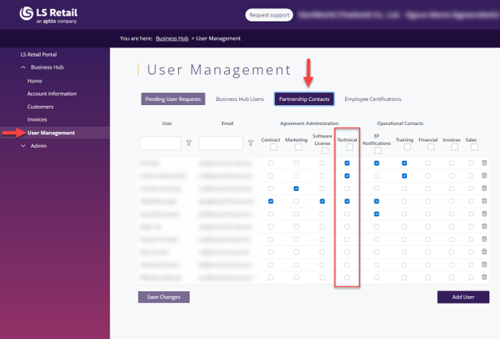
The email is sent to the person/people who are registered as the Technical contact in the Business Hub on the LS Retail portal.
- You can check who this is in your company in the Business Hub under User Management > click on Partnership Contacts and look at the Technical column.
Yes.
Partners can request to be moved to a different bucket or move some customers to a later bucket.
We will not move any customer environments without a request from the partner.
Please reach out to us through the LS - Technical Support service desk.
What will not change:
- Ownership will not change.
- Changes related to access to data will not change.
- Databases will stay as they are.
- Oauth authentication app configuration will not change.
What will change:
- LS Retail will no longer control the upgrade flow in the same detail as before.
- In rare cases, environments will be moved to a new Azure region to align with BC-hosted environments.
- Security is higher in the new environments as AL code cannot invoke external DLL's
- The service is changed from embed to BC public cloud. This means that the base URL will change from lscentral.bc.dynamics.com to businesscentral.dynamics.com
LS Central Version
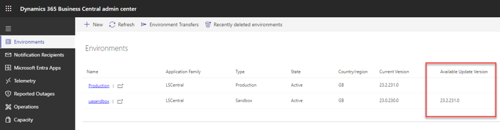
- The environment needs to be on LS Central latest available version for your country. The move will fail if the environment is on an older version.
Production Environments
- Check if there is already a Production environment in the BC Admin Center where the Application Family = Business Central. We have seen that in some cases these were created by mistake.
- Before the move, either remove the environment or rename it so it is not the same as the Production environment that is going to be moved.
- If that has not been done then Microsoft will add "-BC" to the environment name. Meaning that the name of the environment being moved doesn't change.
- Please make you and your customers aware of this as otherwise, they can expect to be charged for two Production environments.
Change the URL
- With the move, the base URL will change from lscentral.bc.dynamics.com to businesscentral.dynamics.com.
- We recommend switching to the new URL and that you update this for your customers as Microsoft will redirect for a limited time only. We do not have a date for how long the redirects will work, so we advise you to update this within the next two months after moving the production.
- Note that the URL need to be specific
PowerBi Reports
- With the move, the Application Family changes from LSCentral to BusinessCentral. If the customer has Power BI reports that use the Dynamics BC 365 connector in Power BI then you need to make a change in the connection code for each table in the report.
- Open Transform data from the ribbon, Select the table you want to change from the left menu, and select Navigation from the right menu, an error will appear.
- With the Navigation selected on the right, click Advanced Editor from the top menu. This opens the Advanced Editor dialog.
- From the Advanced Editor remove (lscentral) from the name of the environment – leaving only the actual environment name (capitalized).
- Click Done.
- A preview of the data should load and you can select Close & Apply from the ribbon to close Transform data and return to the report.
The duration of the move depends on the number of companies and number of extensions in the environment. Data size should not be an issue. In general, the move should not take longer than a normal environment upgrade.
You can look up how long your last customer upgrade took, by logging into the Admin Center for the specific customer and click on Operations.
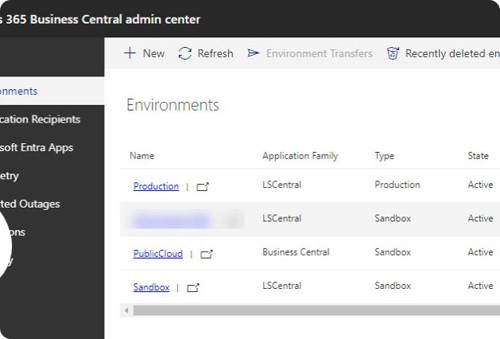
Once an environment has been moved you will see in the BC Admin Center that the Application Family has changed from LSCentral to Business Central.
Below is an example of PublicCloud sandbox that has been moved over.
- The environments will be moved within the agreed date that you, the partner, and your customer have confirmed to be the optimal date.
- The move will happen within the Upgrade Window as it is set in the Admin Center for each environment.
- For customers that have not gone live, you can request the move to be scheduled outside the Upgrade window.
- Partners with multiple customers can request to split the move of their customers between days if they do not wish to move all customers on the same day.
- Partner can also ask all or some of their customers to be moved to a different bucket.
The app ID is the same but the names for the language Apps and local functionality Apps will change as of version 23.0
Sandboxes named “PublicCloud” are moved daily. You can start testing the sandbox the day after it was created. If you want to confirm that the environment has been moved, you can look at the Application Family in the Admin Center, it should say Business Central for the public cloud instead of LSCentral.
Each bucket spans four weeks. We recommend following this guideline:
- Week 1: Reach out to customers and create the sandboxes
- Week 2 - 3: Do your testing and decide on when you want to move your customers
- Week 4: Move your customers' Production environments and remaining sandboxes(if any)
All issues related to the move will get our highest priority. Please submit a support ticket through our LS - Technical Support service desk.
Please be sure to mention that the issue has surfaced with the move to the BC public cloud.
When moving from the embed cloud to the BC public cloud, the database stays intact but the service is changed from embed to BC public cloud.
- This means that the base URL will change from https://lscentral.bc.dynamics.com
to https://businesscentral.dynamics.com - The current integration URL (web service URL) will still work; it will be redirected to the new URL. We recommend switching to the new URL and that you update this for your customers as Microsoft will redirect for a limited time only. We do not have a date for how long the redirects will work, so we advise you to update this within the next two months after moving the production.
Note that the URL needs to be specific:
- Not re-routed
- Will be re-routed
- https://lscentral.bc.dynamics.com/Production
- https://lscentral.bc.dynamics.com/Production?company=[company]
- https://lscentral.bc.dynamics.com/[tenant id]/Production?company=[company]
No, you do not need to set up a new app or change any configuration in an existing Azure app. The clients connecting to the moved environment will continue to work.
With the move, the Application Family changes from LSCentral to BusinessCentral. If the customer has Power BI reports that use the Dynamics BC 365 connector in Power BI then you need to make a change in the connection code for each table in the report.
- Open Transform data from the ribbon, Select the table you want to change from the left menu and select Navigation from the right menu, an error will appear.
- With the Navigation selected on the right, click Advanced editor from the top menu. This opens the Advanced editor dialog.
- From Advanced editor remove (lscentral) from the name of the environment – leaving only the actual environment name (capitalized).
- Click Done.
- A preview of the data should load and you can select Close & Apply from the ribbon to close Transform data and return to the report.